
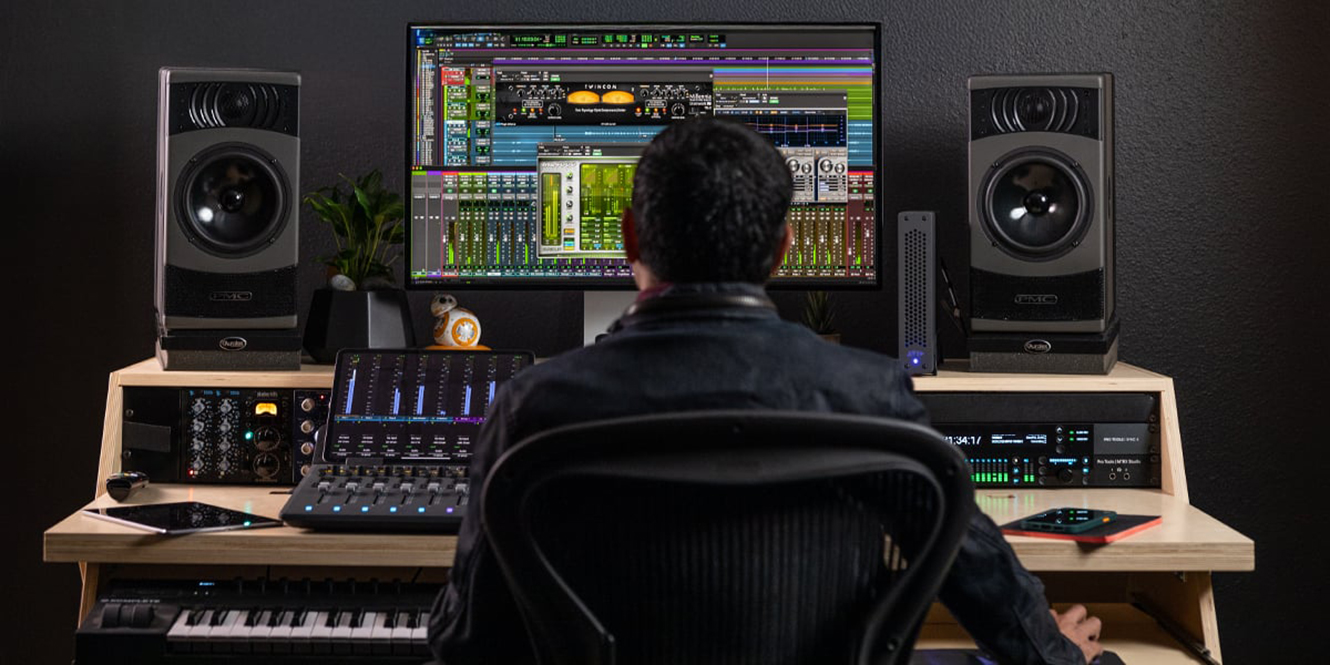

Pro Tools might look intimidating at first, but once you know where to start and how it all works, you’ll find that it’s a powerful and intuitive tool for recording and producing music.
In this beginner’s guide, we’ll walk you through how to use Pro Tools, providing you with the basics of what you need to know to get up and running: from creating your first session and connecting your audio interface, to recording, editing, mixing, and exporting your tracks.

Key takeaways
- Create a New Session: Open Pro Tools and create a new session, using 44.1 kHz Sample Rate, 24-bit WAV for optimal quality and performance.
- Connect Your Audio Devices: Plug in your audio interface, mic, headphones, and instruments, then configure input/output settings in the Pro Tools Playback Engine.
- How to Navigate Pro Tools: Use the Edit Window for recording and arranging, and the Mix Window for balancing levels and applying effects.
- Adding New Tracks: Create mono or stereo audio tracks depending on your input source. Arm tracks with Record Enable to prepare them for recording.
- Configure Recording Settings: Set a low buffer size for minimal latency and adjust key settings like plug-in processing and video engine for a smooth reliable recording experience.
- Edit Your Recordings: Use tools like copy, cut, and fade to edit your recordings and utilise Playlists for create merged comp folders.
- Adding MIDI Instruments: Connect a MIDI keyboard and create an Instrument Track to use virtual instruments. MIDI lets you trigger software sounds and edit musical performance data.
- Adding Plugins: Scan for built-in and third-party plugins, then load them via Insert slots on each track. Use EQ, compression, and reverb to shape your sound.
- Mixing: Adjust volume, panning, and basic effects in the Mix Window to balance your track. Keep it simple and aim for clarity across all elements.
- Exporting: Bounce your final mix to WAV or MP3 using File > Bounce to Disk. Use shortcuts for quicker access and ensure your output is properly labelled.
Why choose Pro Tools?
For decades, Pro Tools has been a mainstay in professional studios. But its appeal goes far beyond big-budget productions. It’s also a smart choice for anyone starting out.
You’ve almost certainly heard Pro Tools before, even if you didn’t know it. It’s the engine behind chart-topping hits, film scores, and podcasts. Producers like Andrew Scheps, Jack Antonoff, and Benny Blanco rely on it, and artists such as Dr. Dre and Pharrell have used it to shape iconic records.
So why do they choose it? For one, the software is built with professionals in mind. It gives you all the power of a commercial recording studio, from precise audio editing to deep MIDI composition tools.
It’s flexible enough for any kind of producer and musician, whether you’re making beats, tracking vocals, scoring for film, or experimenting with sound design. You’ll find an extensive library of plugins and virtual instruments included, covering drums, synths, guitar amps, orchestral sounds, and more. These tools are designed to sound authentic and perform reliably.
Plus, it’s great for collaboration. You can start a project at home and then pick up where you left off in a professional studio or share sessions with other musicians and producers around the world.
Basically, it’s a future-proof DAW. If you’re serious about your craft – or simply want to learn with tools the pros use – it’s a solid foundation to build on. The workflow is fast, the audio quality is superb, and the skills you develop will translate directly to professional environments.
Pro Tools’ versions compared
Pro Tools is available in three versions: Artist, Studio, and Ultimate. Each caters to different needs.
Pro Tools Artist is the entry-level option, designed for solo musicians and hobbyists. It includes a generous selection of plug-ins, virtual instruments, and third-party tools like Melodyne and RX Spectral Editor. With support for up to 32 audio tracks and 16 simultaneous inputs, it’s well-suited to smaller recording setups or home studios.
Pro Tools Studio offers a more advanced feature set for producers and engineers working on larger or more complex sessions. You get support for surround sound, Dolby Atmos mixing, and video playback up to 4K. Studio also unlocks automation tools, expanded track counts, and compatibility with external DSP hardware like Carbon. If you’re mixing music professionally or scoring for film, this version gives you the flexibility to do it all in one place.
Pro Tools Ultimate is the top-tier version, built for high-end studios and post-production houses. It massively expands track and input limits and supports up to 64 UHD video tracks. It’s also the only version compatible with HDX systems, giving you powerful DSP processing and ultra-low latency – essential for large ensemble recordings or detailed sound design work.
Each version builds on the last, so you can start small and upgrade as your projects grow.
How to use Pro Tools
1. Create a new session
To begin, open Pro Tools and select “Create New Session” from the Dashboard. Name your session and choose a suitable save location. For beginners, it’s best to use a WAV file format, a Sample Rate of 44.1 kHz, and a Bit Depth of 24-bit. This offers excellent sound quality without demanding too much from your system.
Select the Interleaved option to keep your stereo files whole and merged together. Once your settings are in place, click “Create” to launch your blank session. This will load the Edit Window, where you can start building your project.
From here, you can begin to familiarise yourself with the DAW and look through the user-interface to understand where different features and functions are located. Remember to save regularly as you go with Cmd+S (Mac)/Ctrl+S (Windows) to ensure any changes you make are saved. Your session file contains all your edits, so keeping it organised is key for future access and backups.
2. Connect your audio devices
To begin recording, you’ll need to connect your audio interface to your computer. Plug in your microphone, headphones, instruments, and studio monitors if available. In Pro Tools, go to Setup > Playback Engine and select your audio interface from the dropdown menu. This ensures all audio is routed through your interface.
Then head to Setup > I/O to confirm or customise your input and output settings. For example, assign your microphone to Input 1 and headphones or studio monitors to Output 1–2. Make sure your interface is powered on and drivers are properly installed if it doesn’t show.
Configuring your I/O is essential in telling your Pro Tools session the flow of audio in your signal chain. You can also rename inputs/outputs for easy tracking later. Once set, your gear is ready for seamless recording and playback. Don’t forget to set levels on your interface to avoid clipping or signal issues during recording sessions.
3. How to navigate Pro Tools
Pro Tools features two main windows: the Edit Window and the Mix Window. The Edit Window is your main workspace, displaying the Tracks, Timeline, and Toolbar. It’s where you record, edit, and arrange your audio and MIDI clips.
Along the top, the Toolbar includes essential tools like the Grabber, Selector, and Zoom, as well as the Transport Controls for playback, recording, and setting tempo.
The Mix Window shows each track in a channel strip layout, complete with faders, pan knobs, volume meters, and insert/send slots for effects. This view mimics a traditional mixing desk. You can toggle between windows using Cmd + = (Mac) or Ctrl + = (Windows). We recommend familiarising yourself with these layouts early on to make editing and mixing much more efficient.
4. Adding new tracks
To add a new track, go to Track > New, or use the shortcut Cmd + Shift + N (Mac) or Ctrl + Shift + N (Windows). Choose Mono or Stereo Audio Track depending on your source (e.g., mono for vocals, stereo for synths). You can name your track here and save it as a Track Preset if you’ll use similar setups later.
Once created, the track appears in both the Edit and Mix windows. Click the Record Enable button (red circle) on your track to arm it – this means Pro Tools is ready to record input from your microphone or instrument. You can also adjust track input/output settings by clicking the corresponding drop-down on the track header. Keeping tracks clearly labelled and armed correctly is essential for a smooth recording workflow.
5. Configure recording settings
Now that you’ve prepped your project and added some tracks, the last thing before recording is to configure the best Pro Tools settings for recording. Open Setup > Playback Engine and set the H/W Buffer Size to the lowest value, 128 samples. This setting reduces latency, so there’s no delay between you playing your instrument and hearing your sound through Pro Tools.
Disable Ignore Errors During Playback/Record – this ensures you catch any issues during recording. Turn on Dynamic Plug-in Processing to conserve CPU by disabling unused plugins. If you’re not working with video, disable the Video Engine to improve overall performance. These settings ensure smoother recordings, particularly on lower-spec systems.
Don’t forget to monitor your input levels to avoid clipping. You can adjust gain directly on your audio interface or within Pro Tools using the Trim plugin or Clip Gain settings.
6. Edit your recordings
When you’ve made some recordings, Pro Tools’ precise and flexible editing features let you chop, move, and perfect your tracks in your project. Use the Selector Tool to highlight a section of audio, then use Cmd+X (cut), Cmd+C (copy), and Cmd+V (paste) to move or duplicate audio clips.
To avoid clicks or pops at edit points, add fades with Cmd+F – ideal for smoothing transitions between audio files. For crossfades, overlap two clips slightly and apply the fade. Use the Grabber Tool to move regions freely on the timeline.
Using the Playlists feature, you can create a “comp” file to merge the best parts of multiple takes together and create one perfect take from bits and pieces of multiple recordings. You can toggle playlists on each track and promote the best bits to the main track. Pro Tools’ editing features help shape your recordings into polished, cohesive tracks without destructive changes, so you can always revise and refine as you go.
7. Adding MIDI instruments
If you’re a musician working with MIDI instruments such as drum machines or keyboards, Pro Tools has got you covered! Connect your MIDI instrument or controller via USB. Then go to Track > New and select a Stereo Instrument Track to create a new MIDI track.
You can load a virtual instrument by clicking an insert slot and choosing from the Instrument list. Unlike audio, MIDI doesn’t record sound; it captures note data (pitch, duration, velocity) that tells instruments what to play. It’s like sheet music for software.
You can edit MIDI in the Edit Window or open the MIDI Editor for a detailed view. To hear your MIDI track, ensure the instrument plugin is loaded, and your controller is set to the correct input. Pro Tools automatically routes MIDI from your device to the virtual instrument, letting you play and record like any other track.
8. Adding plugins
Regardless of what version of Pro Tools you buy, it will come with a solid lineup of mixing plugins. To load one, go to the Mix Window, click on an empty Insert slot, and select a plugin from the list. You can also do this in the Edit Window under the track’s Insert section.
If your plugins aren’t showing in your Inserts section, you might need to rescan Pro Tools to find them. To do this, go to Setup > Preferences > Plug-ins and select Rescan to make them available.
For any third-party plugins that you’ve purchased and want to use in your projects, you will also need to rescan Pro Tools to make them available.
9. Mixing
Now that you’ve recorded, edited, and scanned plugins in Pro Tools, you can start to mix your projects. Mixing is the process of balancing the level (volume) of every track in your mix to ensure they’re all audible and consistent.
Open the Mix Window to see each track laid out like a mixer. Adjust volume using the fader, and place sounds in the stereo field with the pan knob. Each channel has insert slots for adding effects – start with EQ to shape each sound to fit the mix, compression to control the peaks and dynamics of your track for a consistent volume level throughout the track, and add reverb for space.
The key to a good mix is balance: no instrument should overpower the rest unless it’s the focus.
Avoid peaking into the red – use the built-in meters to keep everything clean. It’s best to mix with fresh ears, so take breaks and listen on different speakers. Essentially, mixing is where your track comes to life.
10. Exporting
When your mix is ready, you’ll need to export it for the world to hear. Go to File > Bounce to > Disk to open the export menu. Choose your file type. We recommend WAV for high-quality masters, while MP3 might be the best option for sharing via online platforms. It’s also a good idea to check what formats are accepted where you want to distribute your music.
Set the bounce source to Output 1–2 (your main mix output) and select your desired bit depth and sample rate. Click Bounce to begin exporting. You can also use the shortcut Cmd + Option + B (Mac) or Ctrl + Alt + B (Windows) to open the bounce window quickly.
Be sure to name your file clearly and choose the right destination folder. If needed, enable offline bounce for faster export times. Once done, you’ll have a ready-to-share audio file that you can upload, stream, or send to collaborators.
11. Useful Hot Keys
| Command | Mac | Windows |
|---|---|---|
| Start/Stop playback | Spacebar | Spacebar |
| Undo / Redo | Z / Shift + Z | Z / Shift + Z |
| Start recording | Cmd + Spacebar | Ctrl + Spacebar |
| Copy | C | C |
| Paste | V | V |
FAQs
Can you learn Pro Tools on your own?
By following courses and guides written by professionals and experts, you can learn Pro Tools on your own. Just take your time! Be patient and structured, and practise regularly with the DAW; you’ll soon find Pro Tools second nature to use.
Is Pro Tools easy to use?
Pro Tools and other music software aren’t easy to begin with due to their specific set of features. However, with regular use following tutorials and guides, the software will become second nature. Start with the free trial to build a foundational base of familiarity.
How long does it take to learn Pro Tools?
Learning Pro Tools typically takes several months, depending on your prior experience and daily practice. Beginners often need 3 – 6 months to become comfortable with core features. Mastery may take longer, especially for advanced mixing or post-production workflows.
Final thoughts
From creating sessions and connecting gear to editing, mixing, and exporting your final track, you now have the essential steps to start producing music in Pro Tools. Learning how to use Pro Tools may seem daunting at first, but with a solid grasp of the basics, you’ll build confidence with every project!




0 Comments